# WooCommerce
import { Aside, LinkButton } from "@astrojs/starlight/components";
The [SumUp Payment Gateway for WooCommerce](https://wordpress.org/plugins/sumup-payment-gateway-for-woocommerce/) enables payments on WordPress sites without coding, enabling your customizations and providing your customers the convenience of securely buying products from your website without being redirected to other pages. The plugin supports major cards (Visa, Mastercard, Amex, Diners, Discover, JCB) via embedded forms. Transactions are processed through the SumUp payment platform with [transaction history provided in the SumUp Dashboard](https://me.sumup.com/sales/transactions).
Go to plugin page
## Prerequisites
- Active [SumUp account](https://me.sumup.com). If you don't have one yet, sign up on [our website](https://me.sumup.com/signup). As an authorized Payment Institution by the Central Bank of Ireland, SumUp must verify your identity and business ownership.
- [Review allowed businesses](https://help.sumup.com/hc/en-gb/articles/115008338707-Restricted-businesses) before [signing up](https://me.sumup.com).
## Installing the Plugin
### Automatic Installation
The automatic installation is the easiest option, as WordPress handles the file transfer and you don't need to leave your web browser.
1. Install the plugin via the **Plugins** section in the WordPress Dashboard.
2. Click on **Add new** and search for **SumUp Payment Gateway for WooCommerce**.
3. Click on the **Install Now** button.
4. Click **Activate** to active the plugin.
### Manual Installation
1. [Download our plugin](https://wordpress.org/plugins/sumup-payment-gateway-for-woocommerce/).
2. Upload it to your web server using FTP. See [WordPress codex](https://wordpress.org/support/article/managing-plugins/#manual-upload-via-wordpress-admin) for details on how to do this.
Before setting up the plugin, create your client credentials.
## Integration Options
For plugin versions `2.5` or later, both a [simple](#simple-integration) and [advanced](#advanced-integration) integration flows are available. If you are using a plugin version below `2.5`, follow the steps in our [advanced integration guide](#advanced-integration).
### Simple Integration
Available for plugin versions above `2.5`.
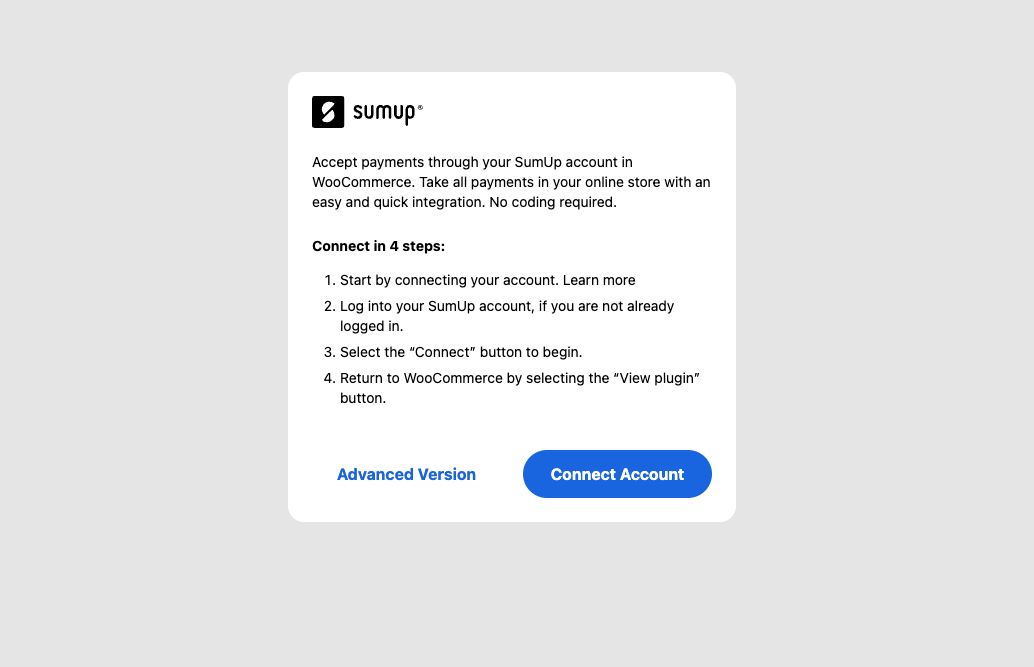
1. Click **Connect account** to initiate the lightweight integration flow (redirects to SumUp Dashboard).
2. In your SumUp Dashboard, click on **Start setup** to generate your production API keys.
Once the flow is initiated, we will take care of generating live API keys for your SumUp account. When the flow completes successfully, they will become available to your WordPress shop.
At this point, you can start accepting payments through SumUp on your WordPress shop.
### Advanced Integration
1. Once the plugin is activated, click **Advanced version**.
2. [Create your API Key](/tools/authorization/api-keys/#create-an-api-key).
3. Enter SumUp credentials (API Key, email, and merchant code) and settings.
## Additional Configuration
- Enable the SumUp Payment Gateway
- Set customer-facing title/description
- Apply an optional payment method description, visible by your customers
- Match shop currency to SumUp account
- Require ZIP code from your customers. **Mandatory for US merchants**
- We recommend enabling the logging option for better troubleshooting should any issues occur (logs can be found in **WooCommerce** > **Status** > **Logs**)
- Choose between popup or embedded payment form with the **Open Payment in modal?** option
### Update Your Website
Before accepting payments through SumUp, your website should display the following information:
- Business & product information
- Delivery, cancellation & return/refund policy
- Payment & billing process
- All prices must have the respective currency prefix
- Privacy policy
- Security policy
## Configuration for Legacy Plugin (Version Older than 2.5)
### Create Your Client Credentials
To create client credentials you must have an active [SumUp account](https://me.sumup.com) with completed [account details](https://me.sumup.com/account). Your account has successfully completed the onboarding process, and you have received the `payments` scope activation. If you don't have the `payments` scope activated yet, [contact us](/contact) for assistance.
Once you ensure you've met the above requirements, you can proceed with our [Register application guide](/tools/authorization/oauth/#register-an-oauth-application) to set up your client credentials.
## Plugin Configuration
Now that you have created your client credentials and installed the plugin, you can proceed with configuration.
In WordPress Dashboard, go to **Plugins** `. **Settings** under the SumUp WooCommerce plugin. You will find the following customization options:
- Enable the SumUp Payment Gateway
- Apply custom title of the payment method, visible by your customers
- Apply an optional payment method description, visible by your customers
- Apply your shop currency corresponding to the one set in your SumUp account
- **Client ID** and **Client Secret** of your application. Both are located in the JSON file you created in the [Create your client credentials step](#create-your-client-credentials), in the following key-value pair:
```json
{
"id": "CCCFAXYD",
"name": "My Online Store Name",
"client_id": "fOcmczrYtYMJ7Li5GjMLLcUeC9dN",
"client_secret": "717bd571b54297494cd7a79b491e8f2c1da6189c4cc2d3481380e8366eef539c",
"application_type": "web",
"redirect_uris": ["https://mywebsite.com/callback"]
}
```
- The email address of your SumUp merchant account
- The merchant code associated with your SumUp account
- Require ZIP code from your customers. **Mandatory for US merchants**
- We recommend enabling logs for better troubleshooting, should any issues occur (Logs can be accessed in **WooCommerce** > **Status** > **Logs**)